Documentation · v0.6.0
From one texture to a material you can use.
Installation, the first generation, every control in the panel, and the honest notes about speed and platform support. No detours.
Start here
What PBRica does
PBRica turns one surface texture into four maps: albedo, normal, roughness and height. It works inside Blender's Image Editor, so you can go from a source image to a material set without leaving the file.
The panel handles the whole pass: load the source, choose the output, generate, review the four maps, refine the height if it needs it, and export the result. The result is a set of ordinary PNGs that work in any material setup.
Before installing
Requirements
| Item | What you need |
|---|---|
| Blender | 5.2 or newer, 64-bit. |
| System | Windows x64 is the tested configuration. macOS ARM64 and Linux x64 are available but not tested by us. |
| Disk | About 750 MB for the extension package; allow roughly 1 GB free for installation and working files. |
| GPU | Optional. Quality runs without a dedicated GPU. Fastest needs supported GPU acceleration on Windows. |
| Internet | Only for downloading and installing. Generation is local. |
PBRica is tested only on Windows x64. It is offered for macOS ARM64 and Linux x64 on a best-effort basis. We do not guarantee identical behaviour or performance there; please try it at your discretion and read the platform section below before buying.
Installation
Install the extension
- Download the installable ZIP (or build it from source; see the repository README).
- In Blender, open
Edit → Preferences → Get Extensions. - Use
Install from Diskand select the ZIP. - Enable PBRica if Blender does not enable it automatically.
- Open an Image Editor, press
N, and choose the PBRica tab.
PBRica is an extension, not a legacy add-on folder. Let Blender install the ZIP; do not unpack it into the add-ons directory by hand.
First material
Your first generation
- Open an Image Editor and select a surface texture in the PBRica tab.
- Choose Output Size and Aspect. 2K is a good first run.
- Choose Performance. Fastest if you are on supported Windows hardware; otherwise Quality.
- Leave Relief Finish at Raw for the first pass.
- Press Generate PBR Maps and wait for the four maps.
- Use the eye buttons in Generated Maps to inspect each result.
If you like the base result, try a Relief Finish profile and press Apply Height Finish. If you want the normal to follow the finished height more closely, set Normal Blend and press Apply Normal Blend.
The source
Choosing an input texture
PBRica expects a surface texture, the same kind of image you would plug into a Base Color socket. A clean, evenly lit photo or a tileable texture works best. Strong directional shadows, baked highlights and heavy colour casts can show up in the result.
- Tileable textures: enable Seamless so the boundary is treated as a repeat.
- Ordinary photos: leave Seamless off. The result is a single surface, not a repeating tile.
- Aspect: use Preserve aspect for the full image, or Square to center-crop.
- Size: the source can be larger or smaller than the output; PBRica resizes it as needed.
The preview in the panel shows the source as Blender sees it. If the preview is blank or unexpected, check the image's colour space before generating.
Orientation
The panel
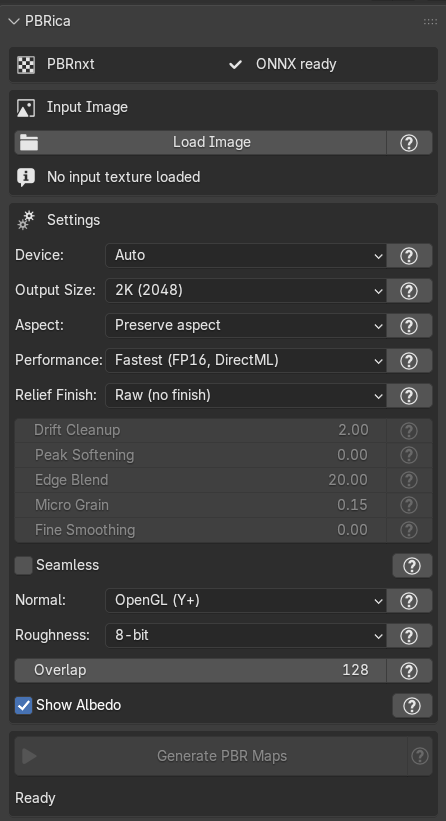
PBRica is organized from top to bottom in the order you usually need it.
| Section | What it is for |
|---|---|
| Input | Load a texture and preview it. |
| Settings | Output size, aspect, performance, device and map options. |
| Generate | Start the generation and follow its progress. |
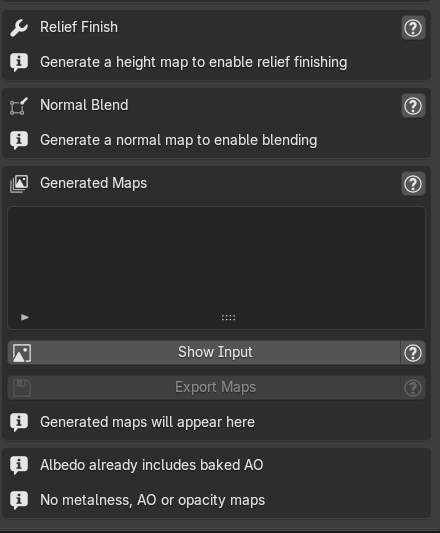
| Relief Finish | Optional height cleanup, presets and Apply/Restore. |
| Normal Blend | Optional blend between the generated normal and the current height. |
| Generated Maps | The four results, eye buttons, Show Input and Export Maps. |
Controls
Settings, one by one
Output Size
1K, 2K, 3K or 4K. Higher sizes take longer and use more memory. Start at 1K or 2K while you are exploring a texture.
Aspect
Preserve aspect keeps the source proportions; the long edge becomes the chosen size. Square center-crops to a square before generating.
Performance
Quality is the reference mode and works across platforms. Fastest uses supported GPU acceleration on Windows and is dramatically quicker on compatible hardware. If Fastest is not available, the generation falls back to Quality automatically.
Device
Auto uses the best available option, CPU forces the processor, and GPU asks for GPU acceleration when present. After the first generation, Device and Performance are fixed for that Blender session; restart Blender to change them.
Seamless
Enable this for textures that should repeat. It treats the image as a tile and helps the edges agree. Leave it off for photos and single surfaces.
Normal
OpenGL (Y+) is the usual Blender convention. DirectX (Y−) flips the green channel for pipelines that expect it.
Roughness
Choose 8-bit for a compact map or 16-bit when you want smoother gradients for look development.
Overlap
How much neighbouring regions share when the image is larger than one processing pass. The default is 128; 3K and 4K are capped at 64 automatically. Lower values are faster and can show seams; higher values cost more time.
Auto-show albedo
When enabled, the albedo is pushed into the Image Editor when generation finishes. Disable it if you want to keep inspecting another image.
Height only
Relief Finish
Relief Finish adjusts the height map without changing albedo, normal or roughness. Use it when a surface looks too wavy, too spiky at the top, or slightly disconnected at the edges.
| Profile | Best for |
|---|---|
| Raw | No finishing. Keeps the generated height exactly as it is. |
| Natural | Stone, soil and organic surfaces that need a light touch. |
| Masonry | Brick, pavers and rough stone with high points to calm. |
| Panels | Planks, panels and tiles with broad shapes to flatten. |
| Terrain | Large forms that should stay, with only edge cleanup and a little grain. |
| Custom | Manual control over every slider. |
The controls
- Drift Cleanup: removes a slow slope or broad drift across the surface. Keep it low for terrain.
- Peak Softening: calms only the highest points. Leave it at zero when peaks are part of the shape.
- Edge Blend: softens only a narrow border band to settle the last seam.
- Micro Grain: adds a very small amount of surface texture to the height. Keep it subtle.
- Fine Smoothing: a Custom-only final blur for small noise or banding; start low.
Apply and restore
Apply Height Finish replaces the visible height map with the selected finish. The original is kept as a base, so applying again does not stack. Restore Raw Height returns to the generated height.
Raw is the default. Try a profile only after you have seen the untouched result; it is easier to judge what changed.
Normal only
Normal Blend
Normal Blend changes only the normal map. At 0 the generated normal is kept exactly. At 1 the normal follows the current height completely. In between, the two are mixed.
A value around 0.2–0.5 is the useful range after a strong Relief Finish: it brings the normal back into agreement with the displaced shape without throwing away all the fine surface detail.
- Apply Normal Blend replaces the current normal.
- Restore Raw Normal returns to the generated normal.
- If you change the height afterwards, apply Normal Blend again so the normal follows it.
Relief Finish and Normal Blend are independent. One changes the height; the other changes the normal. Neither changes albedo or roughness.
Running the pass
Generate
Press Generate PBR Maps. The work runs in the background, so Blender stays responsive. You can cancel between steps; the panel returns to its previous state.
When it finishes, four maps appear in Generated Maps: Albedo, Normal, Roughness and Height. The albedo is shown automatically if Auto-show is enabled.
After the first generation, Device and Performance are fixed for that Blender session. Restart Blender if you need to change them.
Results
Maps and export
Each row in Generated Maps has an eye button. Press it to show that map in every Image Editor. Show Input returns to the source texture.
Export Maps
Press Export Maps, choose a base filename, and PBRica writes four files in the selected folder:
<base>_albedo.png<base>_normal.png<base>_roughness.png<base>_height.png
The files are copied exactly as they are in the add-on, so real bit depths and any applied finish or blend are preserved. The original input image is not included.
If a cache file is missing, the export is cancelled and the status lists the missing map. Regenerate that map and try again.
Expectations
Performance
Speed depends on output size, performance mode and hardware. The reference figures below are from a Windows laptop with an RTX 3050; your times will vary.
Where Blender offers both backends, use OpenGL for PBRica inference. It is the most reliable choice, especially with Quality. Vulkan can interfere with inference on some systems, particularly when Quality is selected. Change the GPU backend in Blender's preferences and restart Blender before generating. On macOS, keep Blender's default Metal backend.
| Output | Quality | Fastest |
|---|---|---|
| 1K | ~38 s | ~2 s |
| 2K | ~6 min | ~40 s |
| 4K | ~19.5 min | ~41 s |
Fastest is only available with supported GPU acceleration on Windows. Quality is the reference mode and works on CPU as well, but it can take substantially longer — especially at 3K and 4K. On macOS, Linux or a machine without supported Windows GPU acceleration, expect Quality timings, not Fastest timings.
If a first test is taking too long, lower the output size before changing the performance mode. 2K is usually the best balance for look development; 4K is for the final asset.
Read before buying
Platform support
| Platform | Status | What to expect |
|---|---|---|
| Windows x64 | Tested | Quality on CPU; Fastest with supported GPU acceleration. |
| macOS ARM64 | Available, not tested | Quality only; speed and behaviour are not guaranteed. |
| Linux x64 | Available, not tested | Quality only; speed and behaviour are not guaranteed. |
We have only validated PBRica on Windows x64. macOS ARM64 and Linux x64 are provided on a best-effort basis: they should work, but we cannot promise the same results or performance. Try the add-on at your discretion before relying on it in a production pipeline.
Fastest is a Windows-only path. On macOS and Linux, use Quality. It is slower but is the mode we can describe with confidence across platforms.
When something is off
Troubleshooting
Fastest is not being used
Fastest needs supported GPU acceleration on Windows. Check Device and Performance, then restart Blender if you changed them after a generation. Without the required hardware, Quality is expected.
Quality inference is unstable or Vulkan is interfering
Switch Blender's GPU backend to OpenGL where available, then restart Blender. Vulkan can interfere with PBRica inference on some systems, especially in Quality mode; OpenGL is the recommended backend for that configuration. On macOS, keep the default Metal backend.
Generation is slow
Use a smaller output size and Quality on CPU. 4K Quality is a long run by design; 1K or 2K is better for iteration.
The height is too flat
Use Terrain or Natural, lower Drift Cleanup, or set Peak Softening to zero. Restore Raw Height and start again if needed.
The normal looks too soft
Lower Normal Blend, or press Restore Raw Normal. Values near 1 follow the height closely and intentionally reduce the fine normal detail.
Export Maps does not write a file
A cache map may be missing. Regenerate that map, then export again. The export stops instead of writing a partial set.
Device or Performance will not change
Those settings are fixed after the first generation in a Blender session. Restart Blender to choose again.
The texture has a seam
For a repeating texture, enable Seamless before generating. For a photo, leave it off and use Edge Blend in Relief Finish only if the border needs it.
The small print
License and support
PBRica is licensed under the GNU General Public License v3.0 or later. Maps you create with it are yours to use in personal and commercial projects.
For the marketplace listing and updates, use the SuperHive or BlenderKit links in the site footer. For the complete feature overview, return to the PBRica home page.