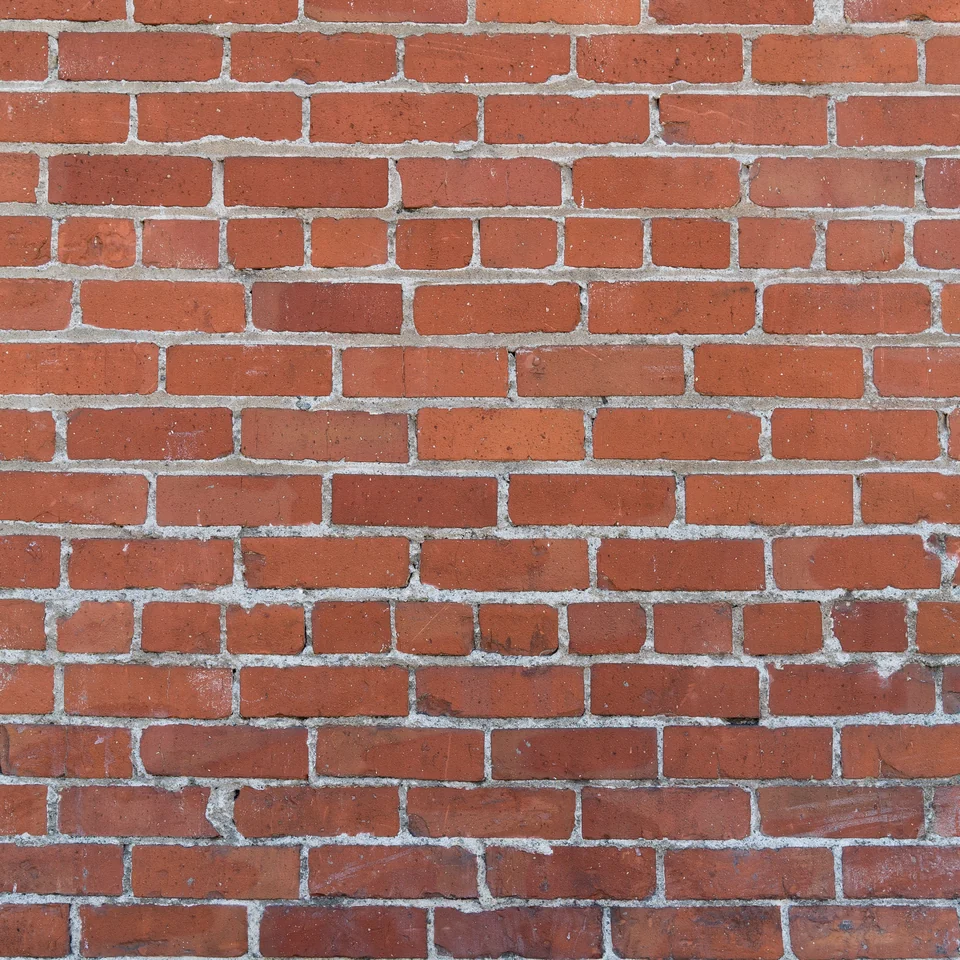
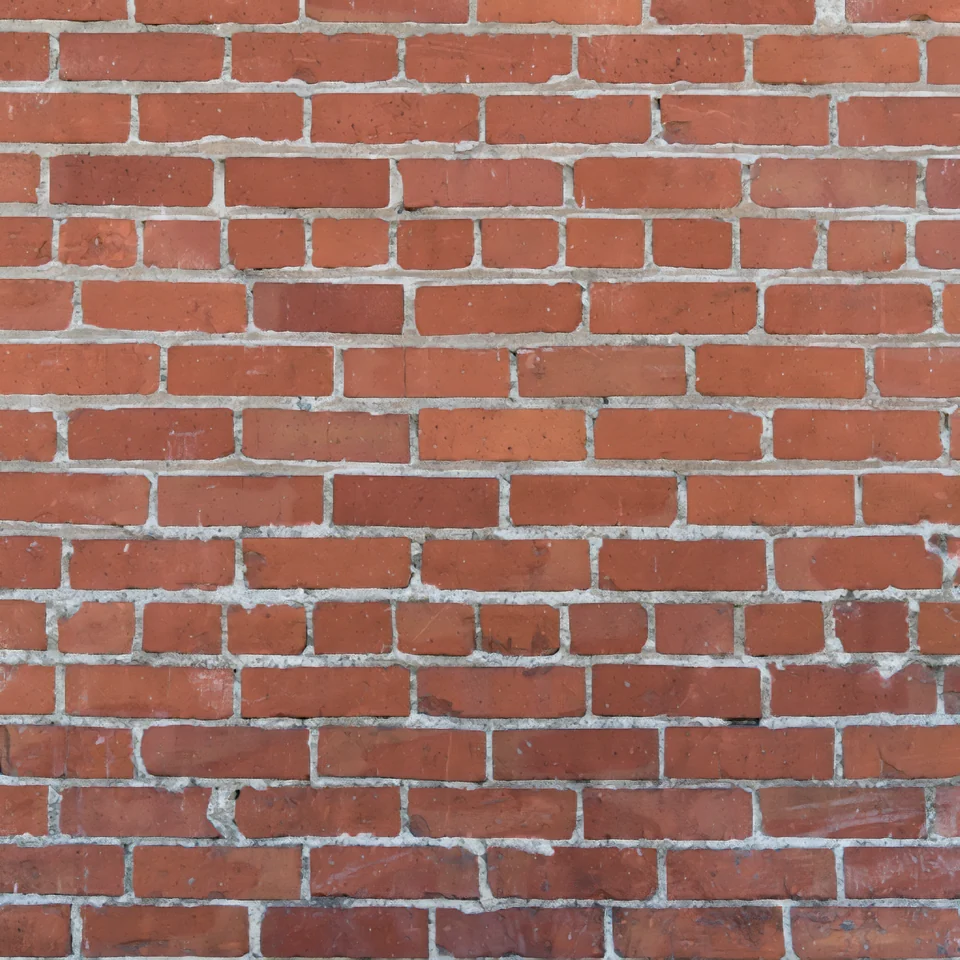
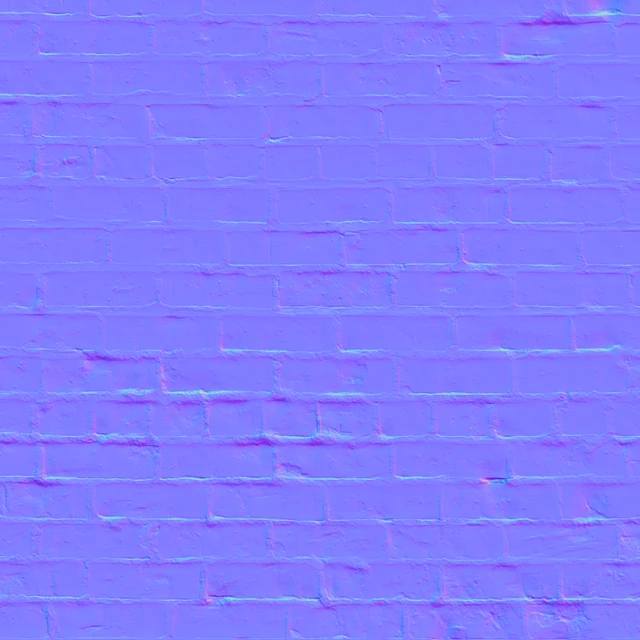
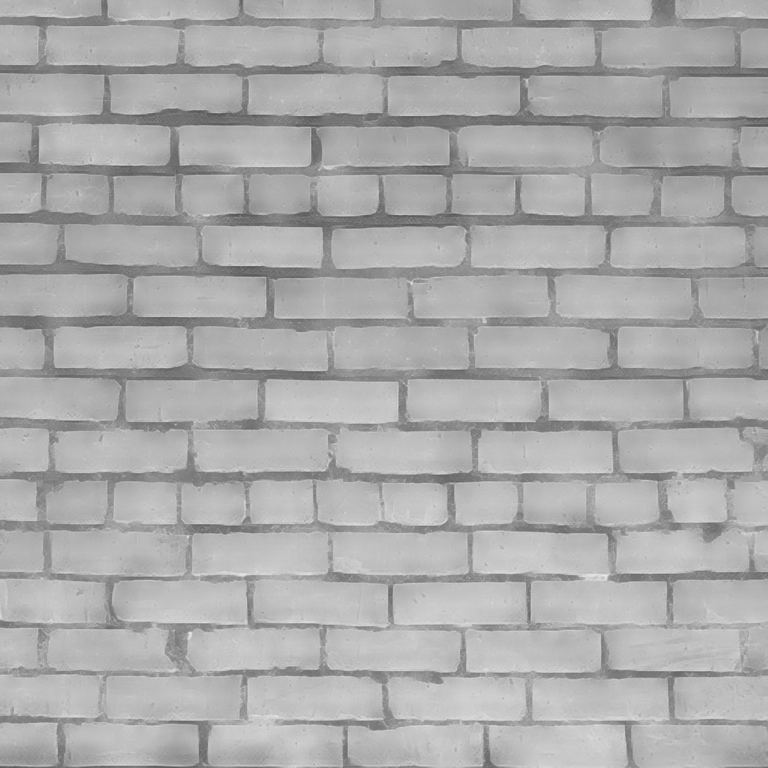
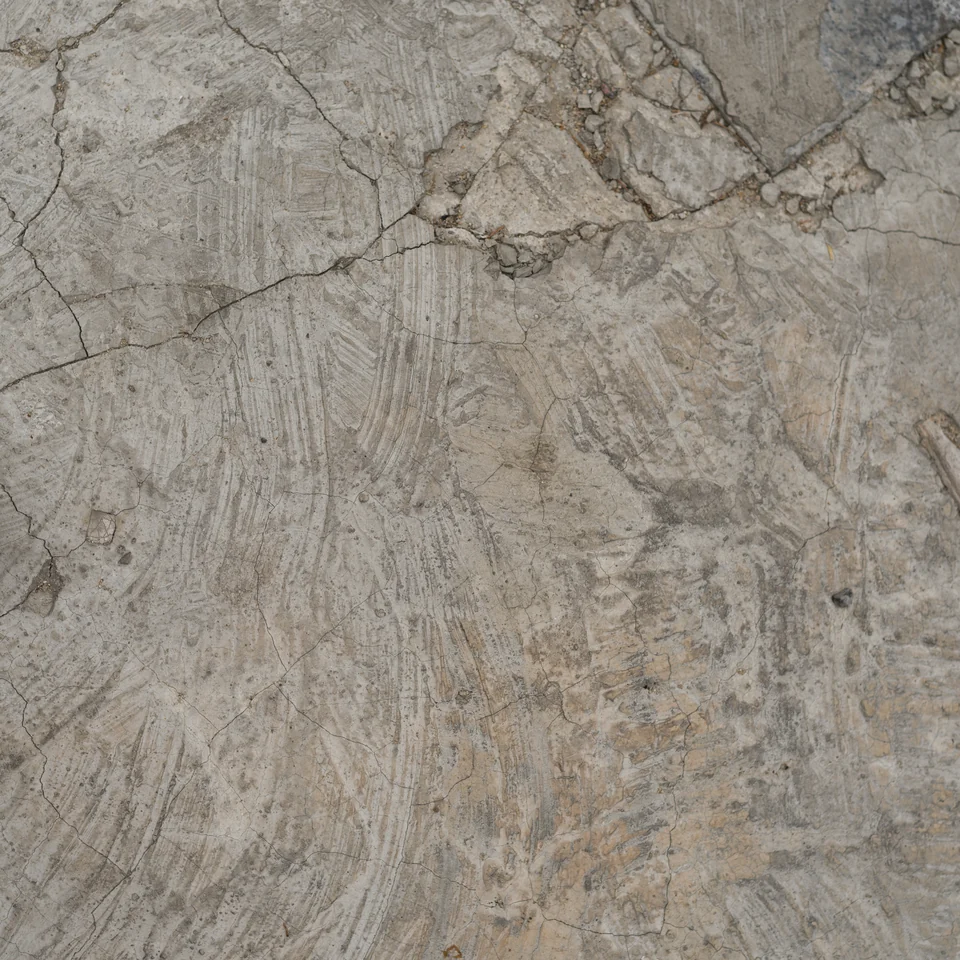
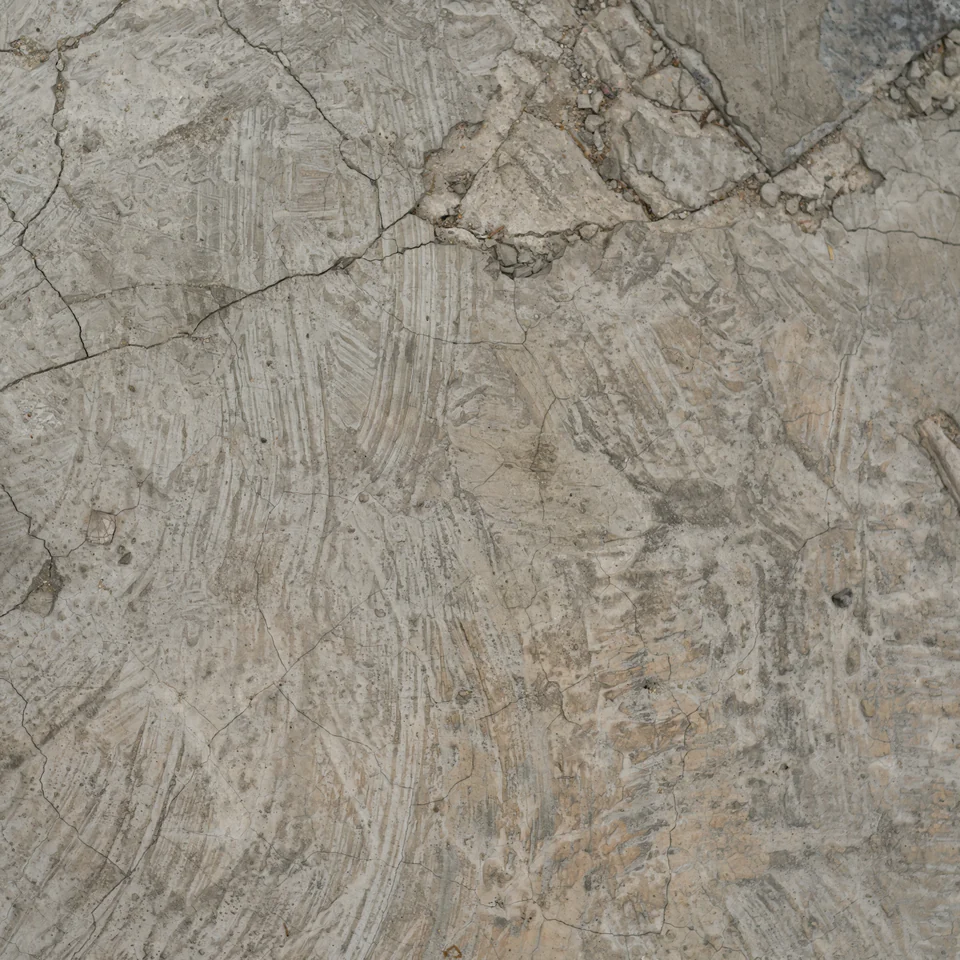
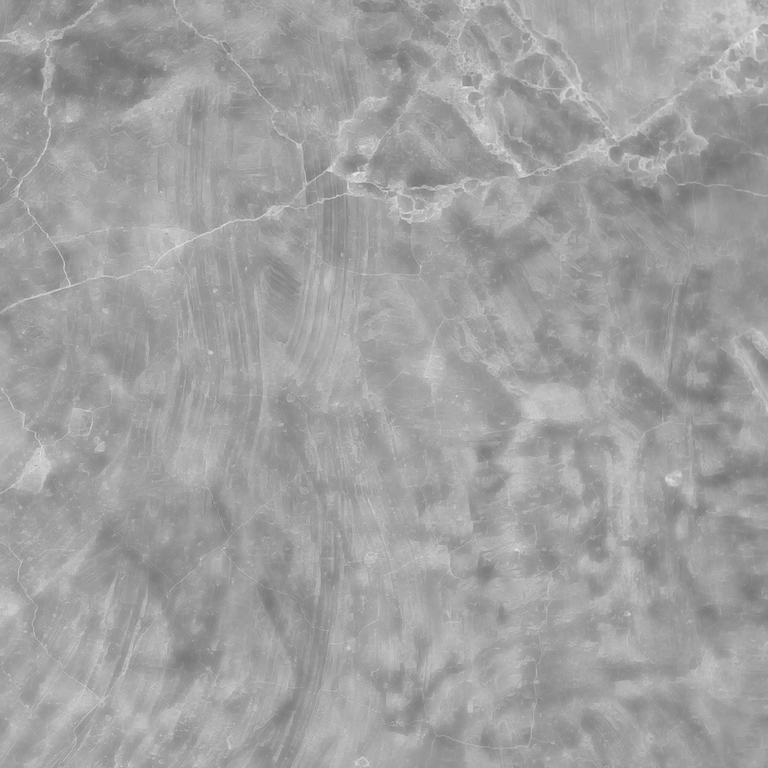
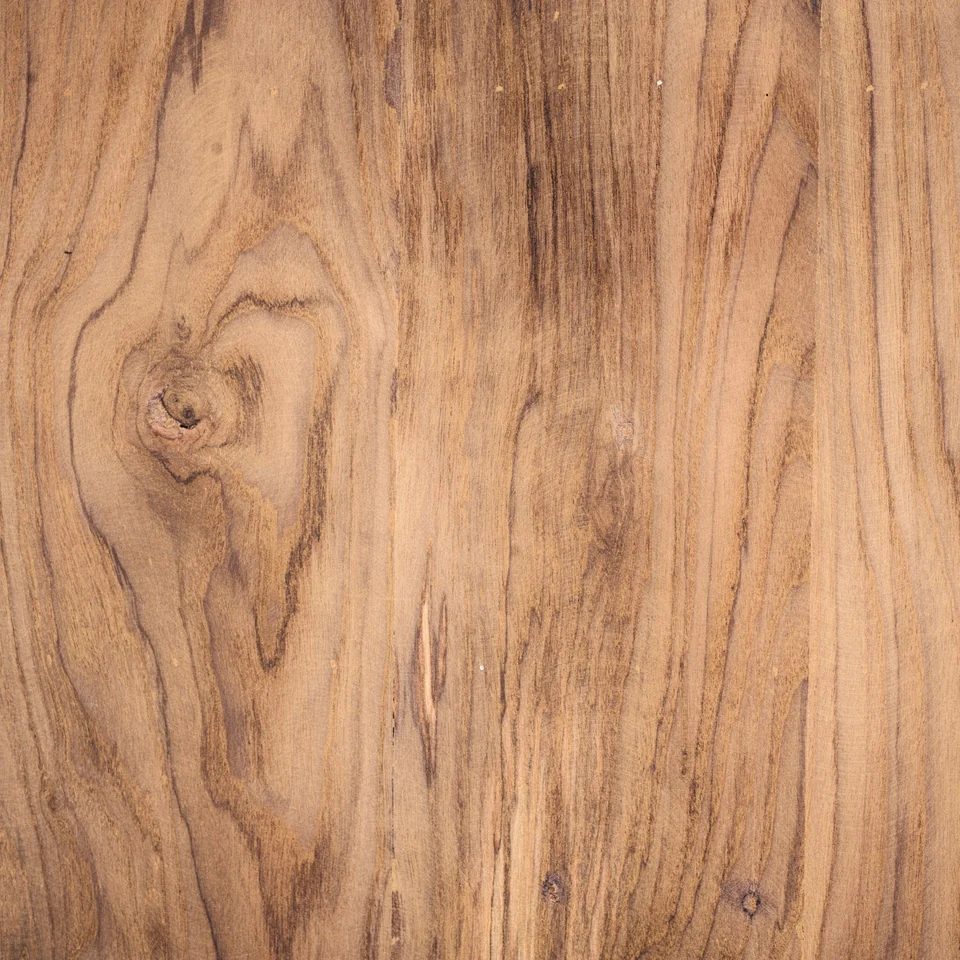
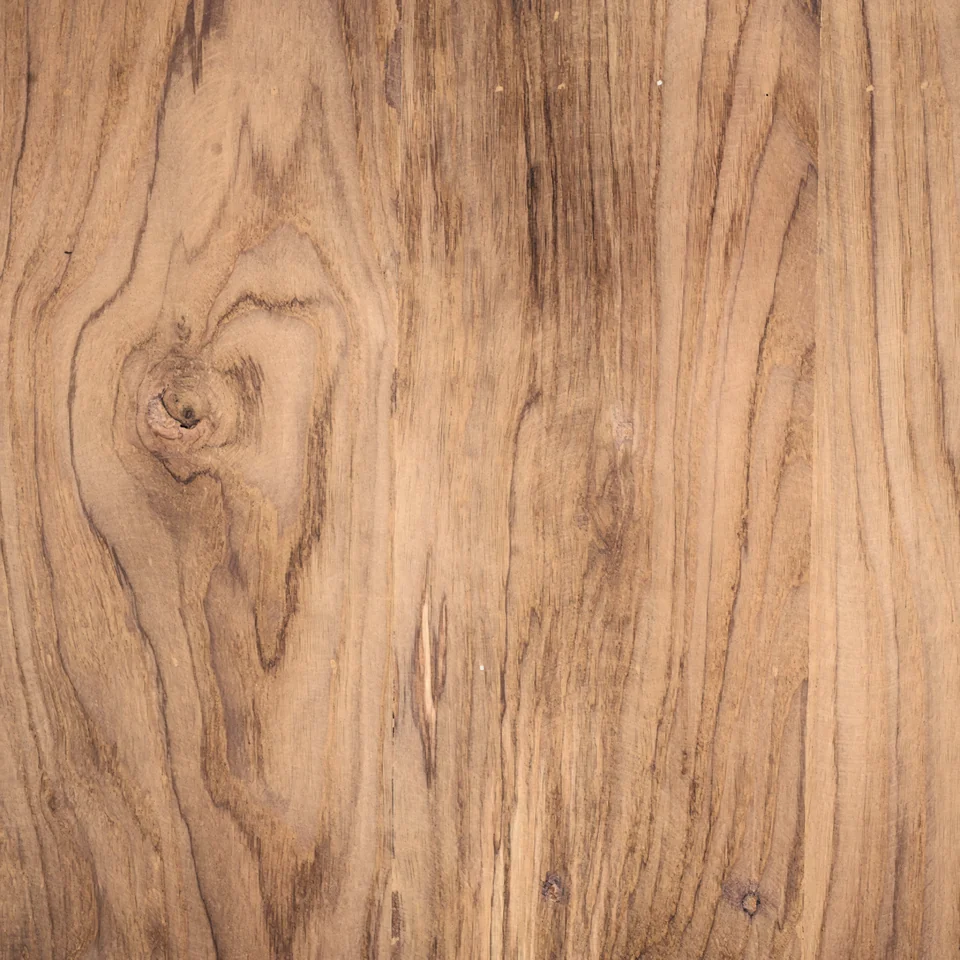
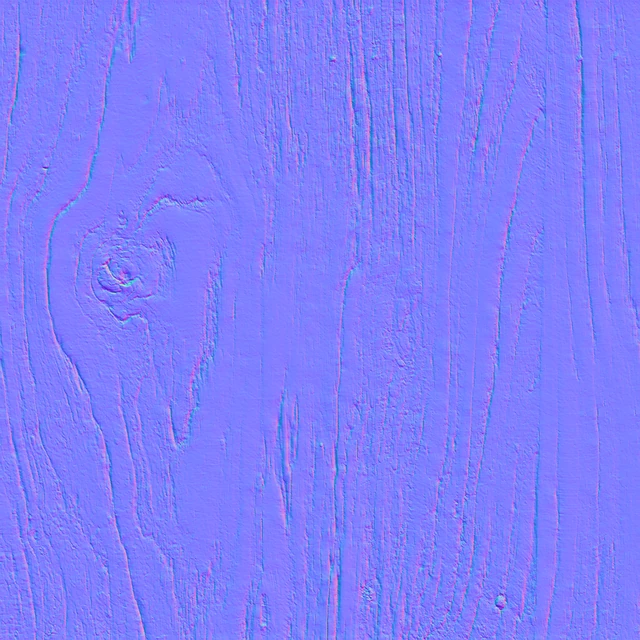
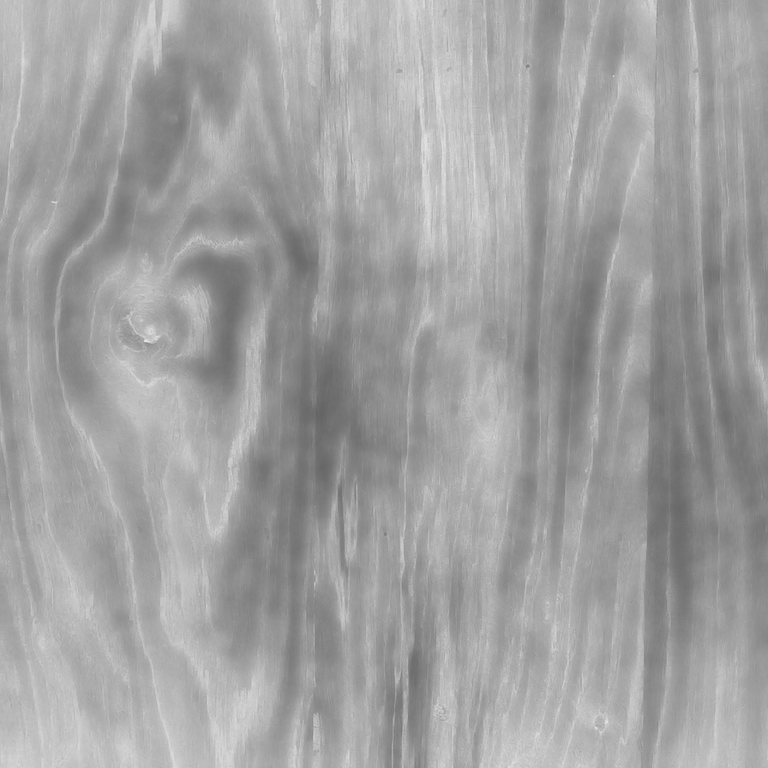
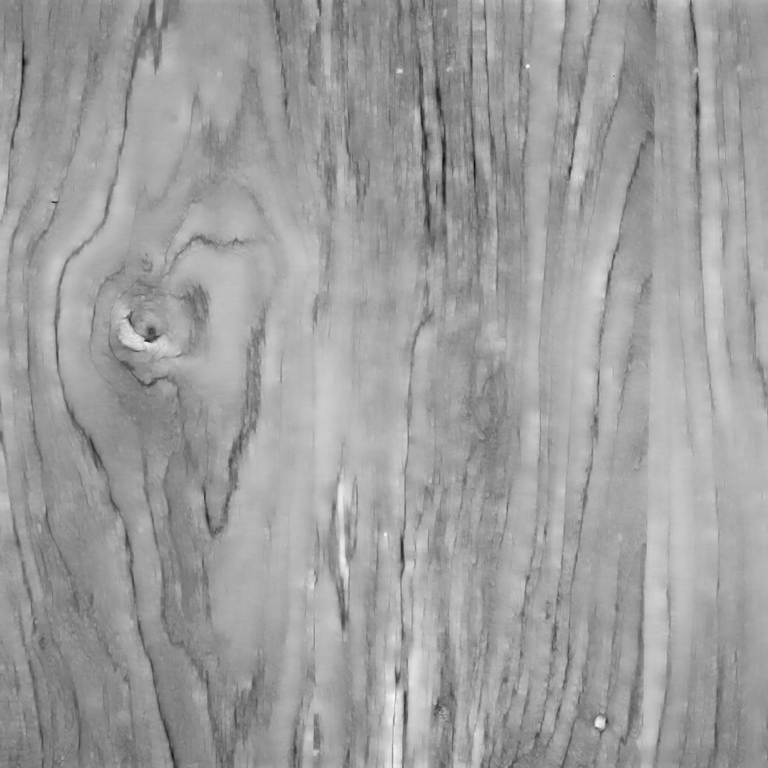
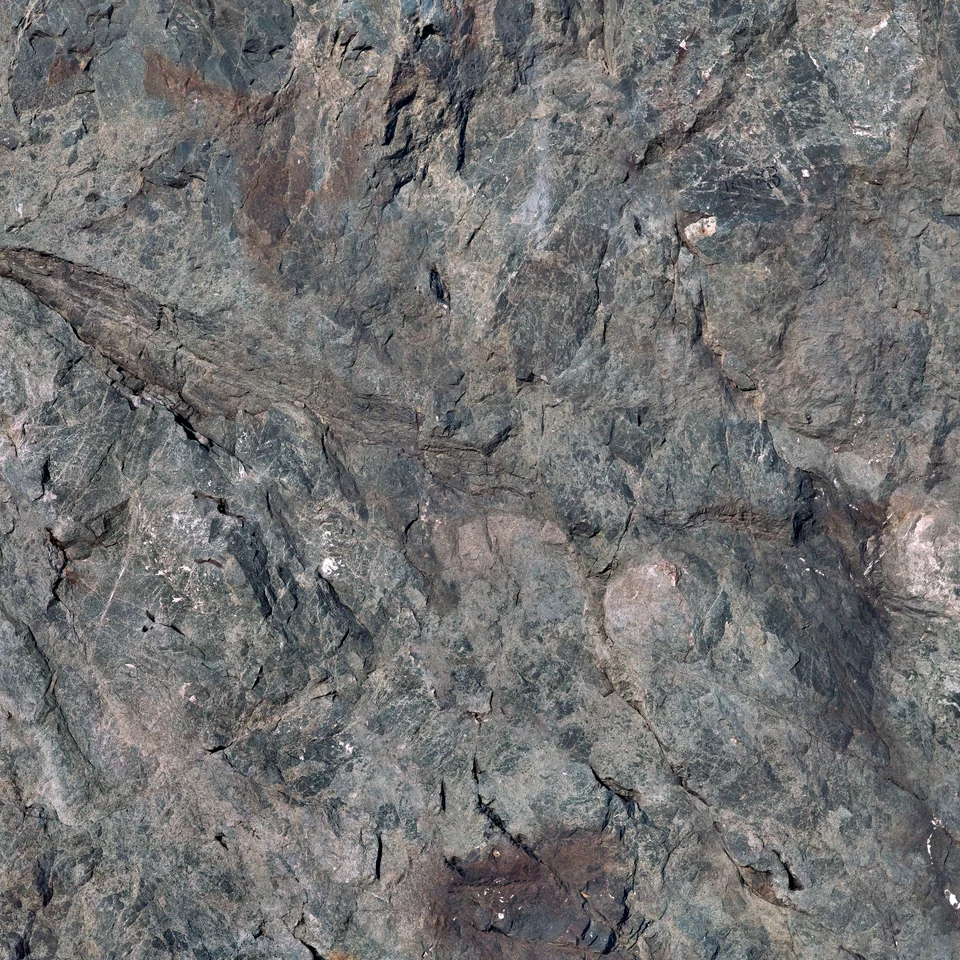
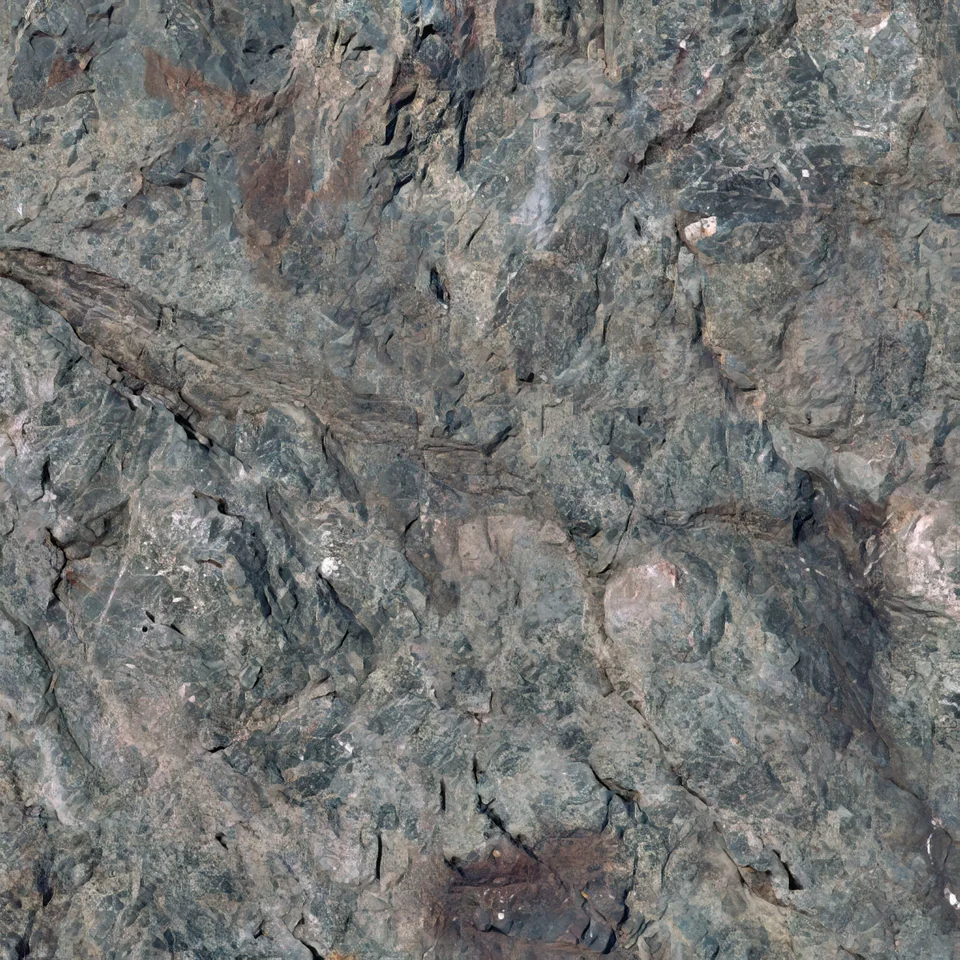
One texture.A full PBR set.

Turn a single surface photo into albedo, normal, roughness and height maps — inside Blender, in one click.

One-time purchaseNo subscriptionWindows, macOS & Linux

01 / From one surface

One photo in.
Four maps out.

Load a surface texture and get a complete material set without rebuilding the same detail by hand.

  • Albedo with baked-in depth
  • Normal, roughness and height
  • Real 8-bit and 16-bit exports
The set

One texture. Four maps.

Everything a material needs, made together so they actually agree with each other.

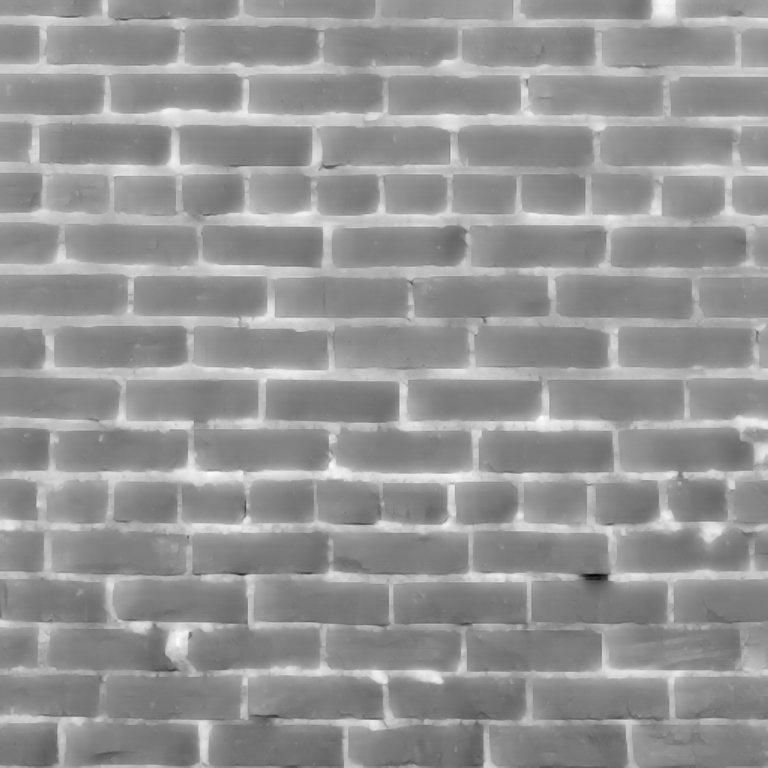
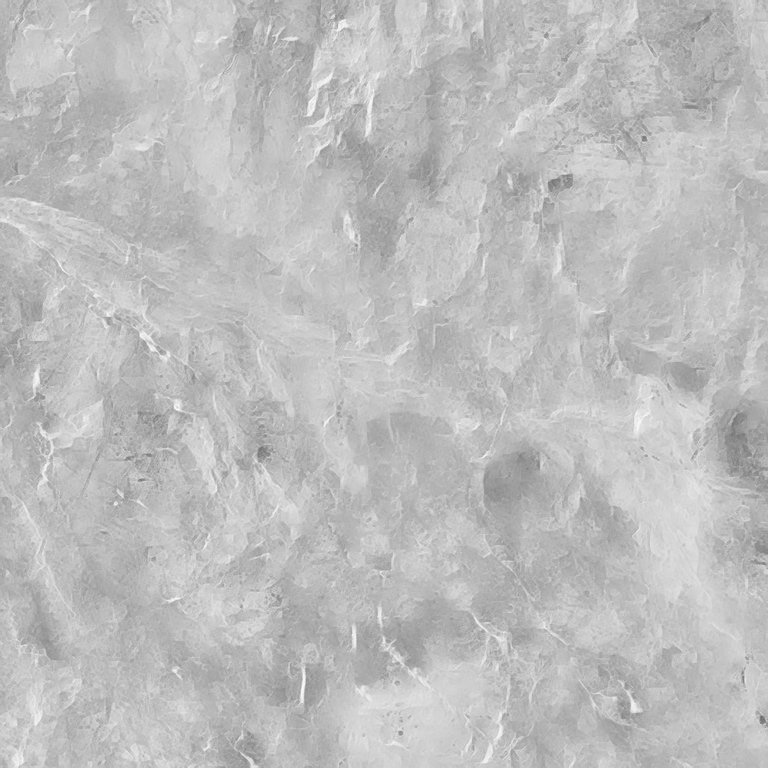
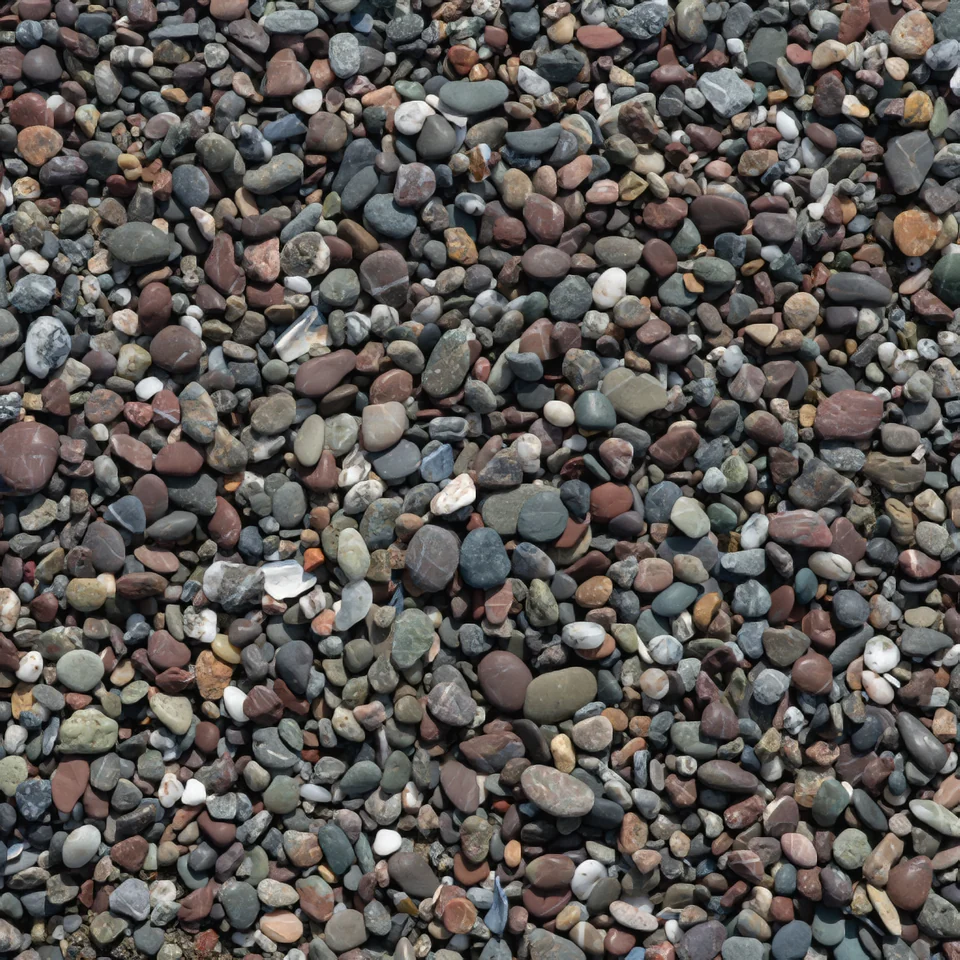
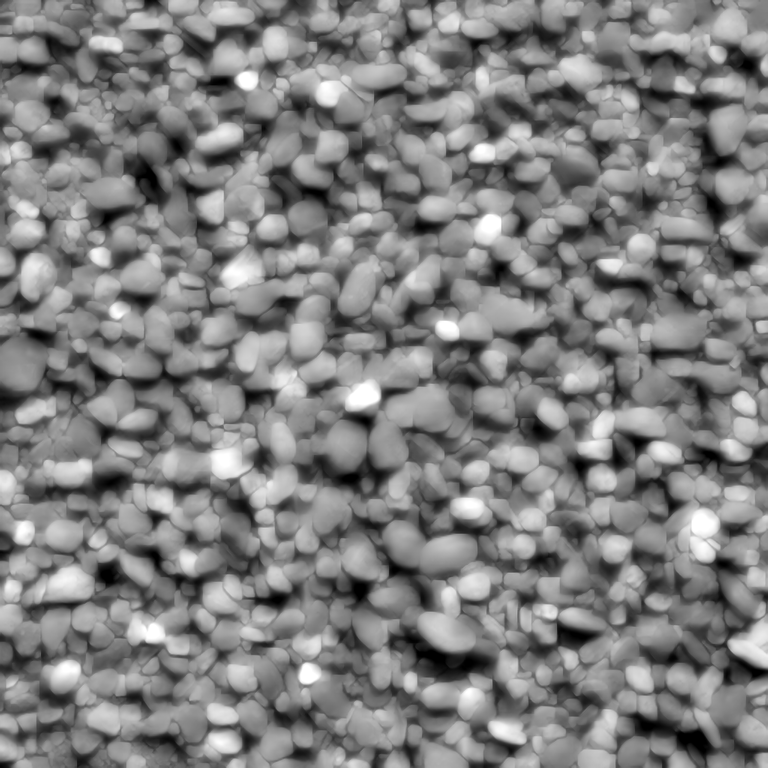
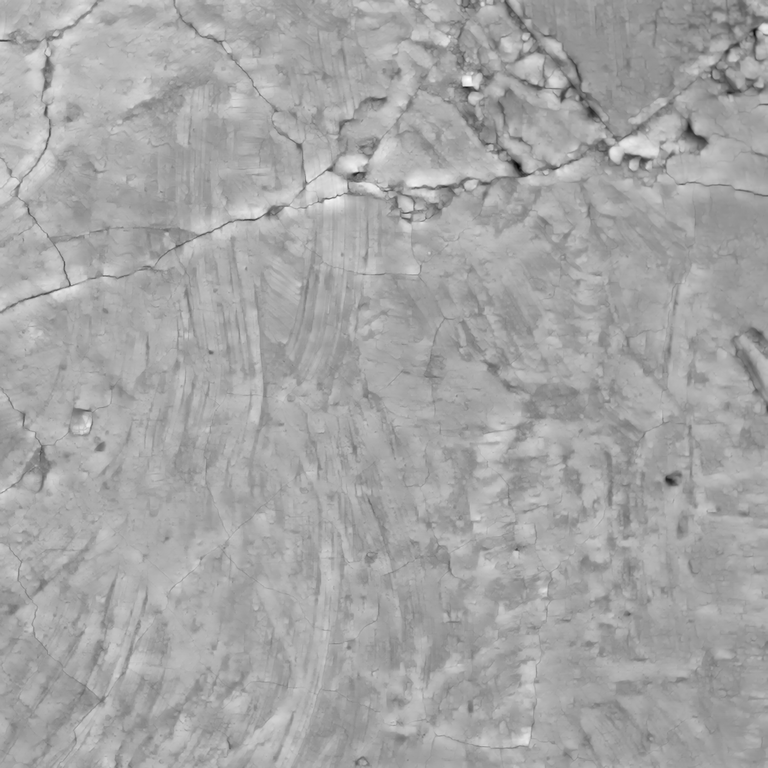
Gravel albedo map

Albedo

The colour that carries the surface, with baked-in depth.

8-bit PNG
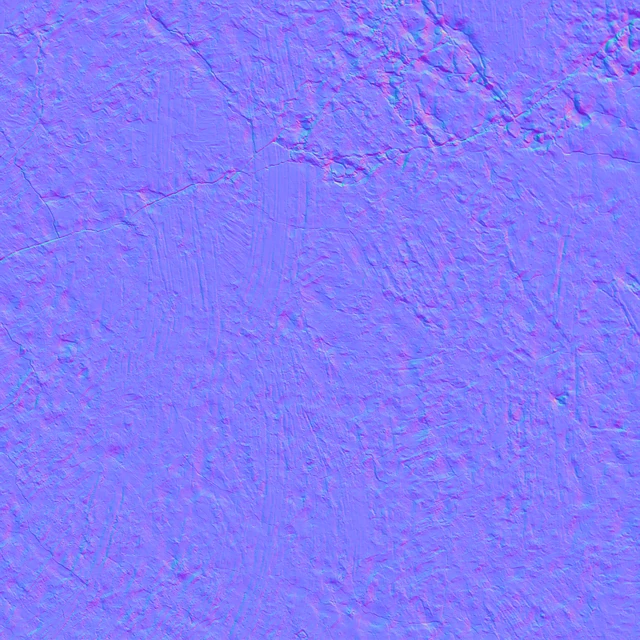
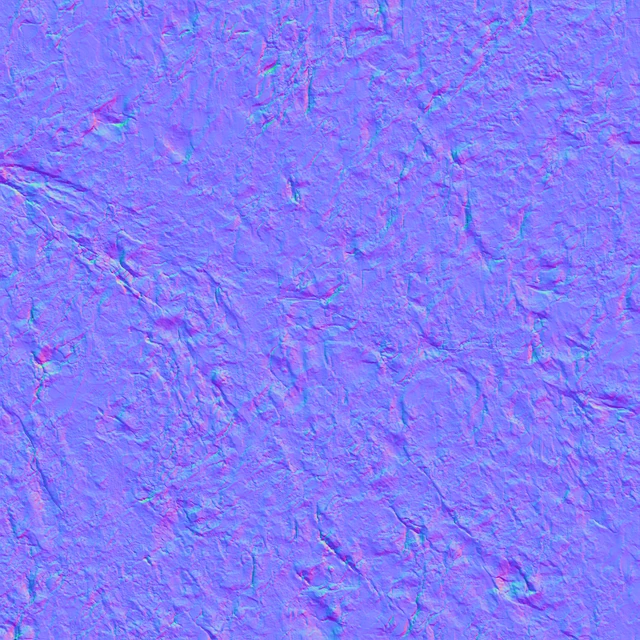
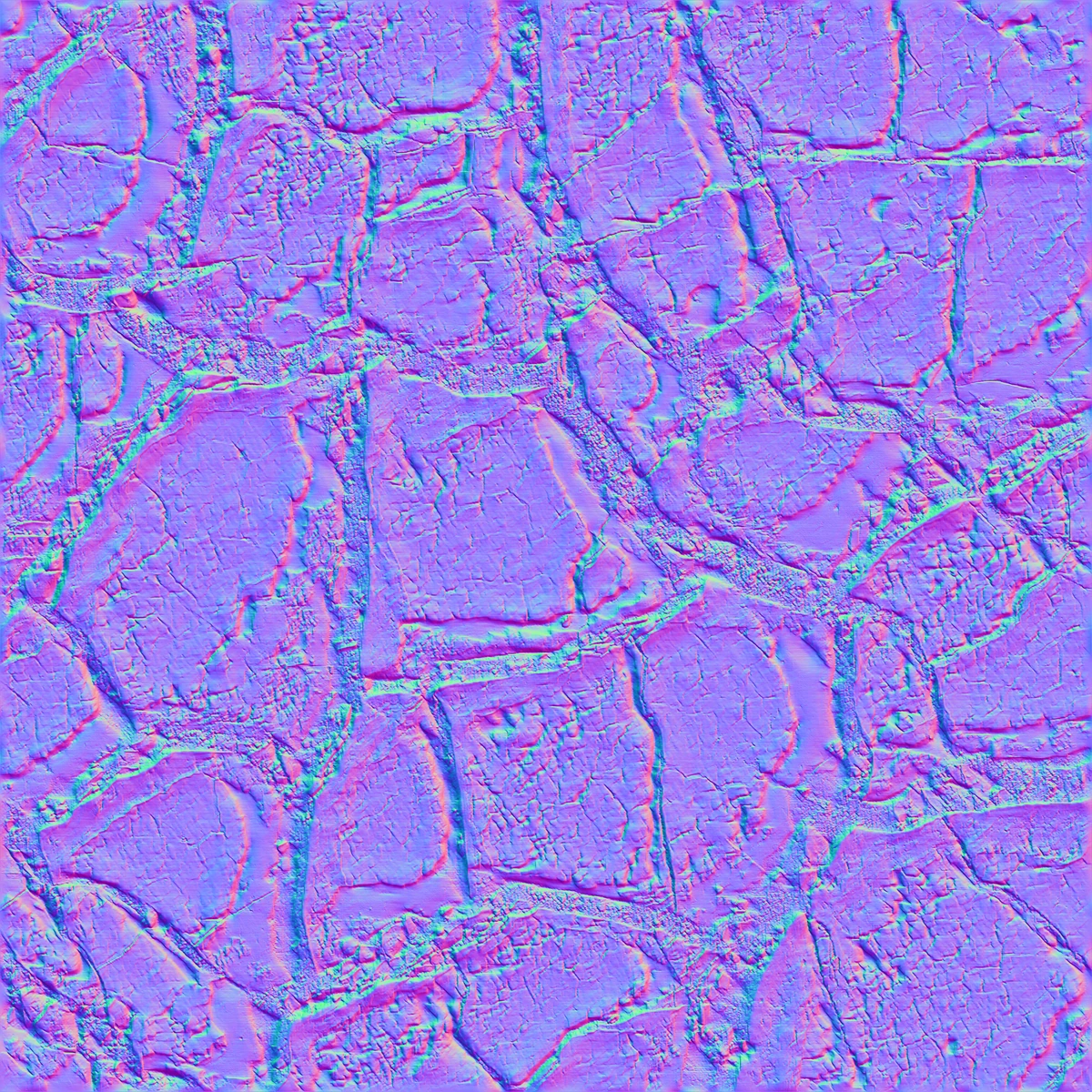
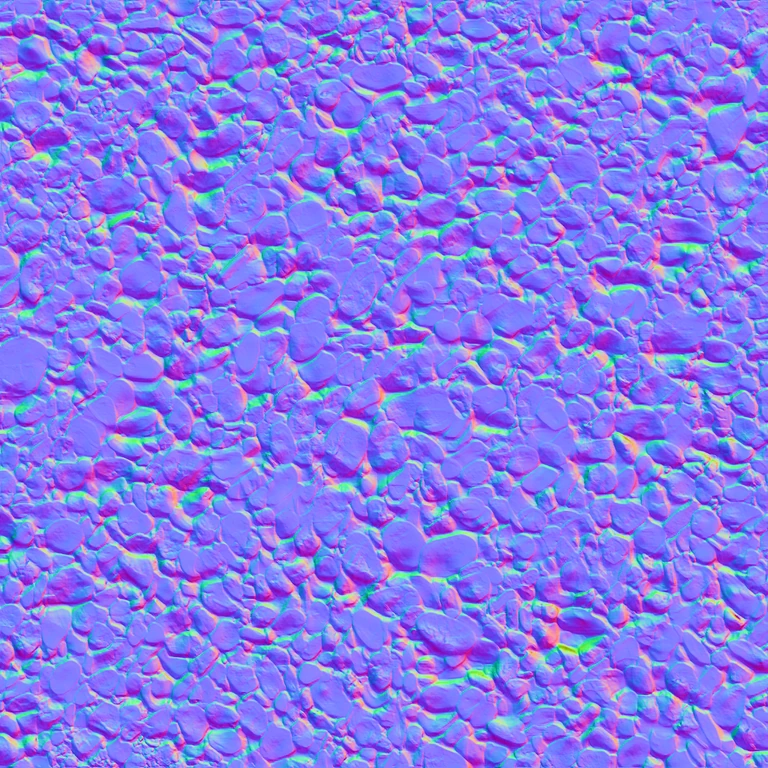
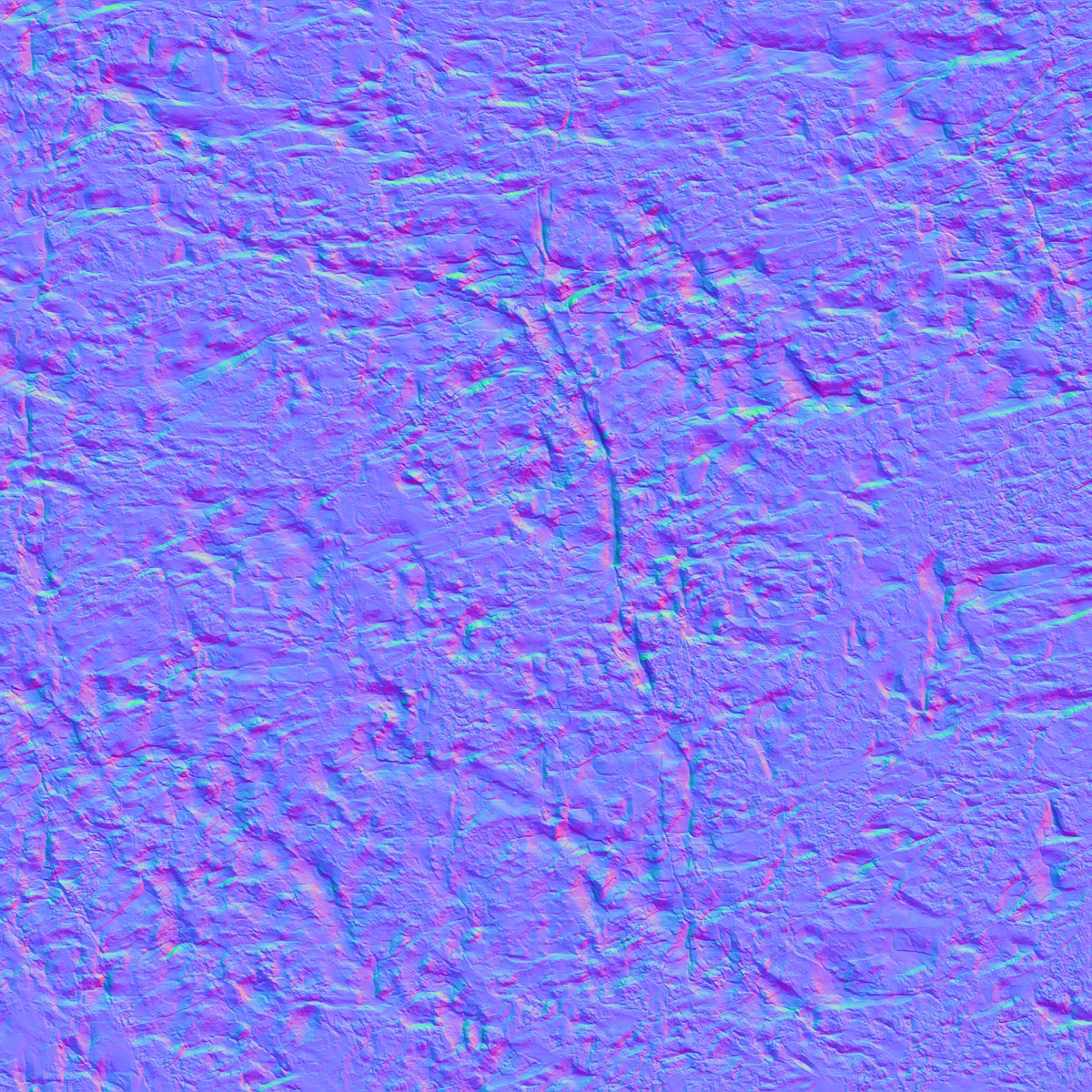
Gravel normal map

Normal

Micro detail that catches the light, in GL or DX.

16-bit PNG
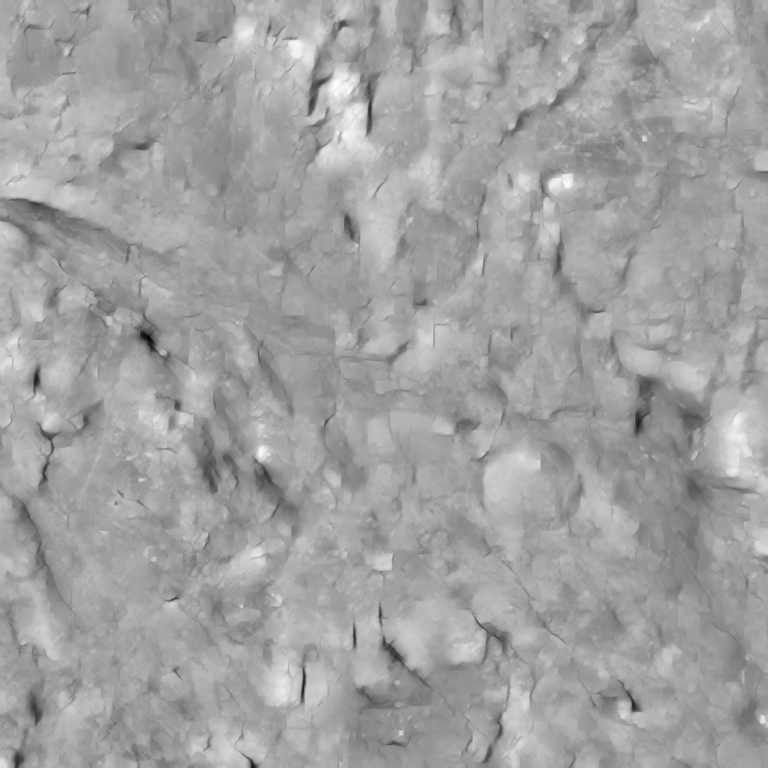
Gravel roughness map

Roughness

Chalk, satin or chrome. Keep it light or go 16-bit.

8 / 16-bit PNG
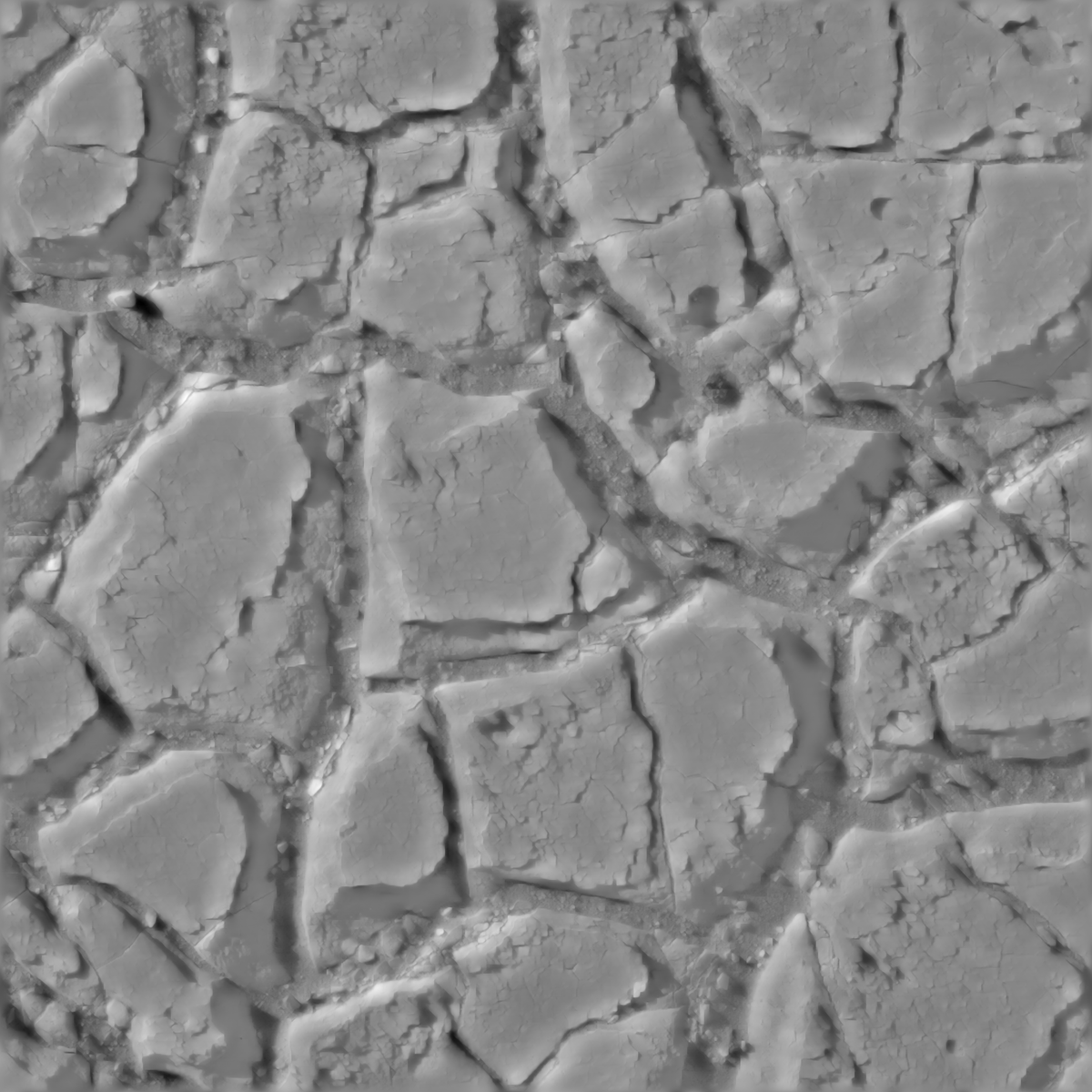
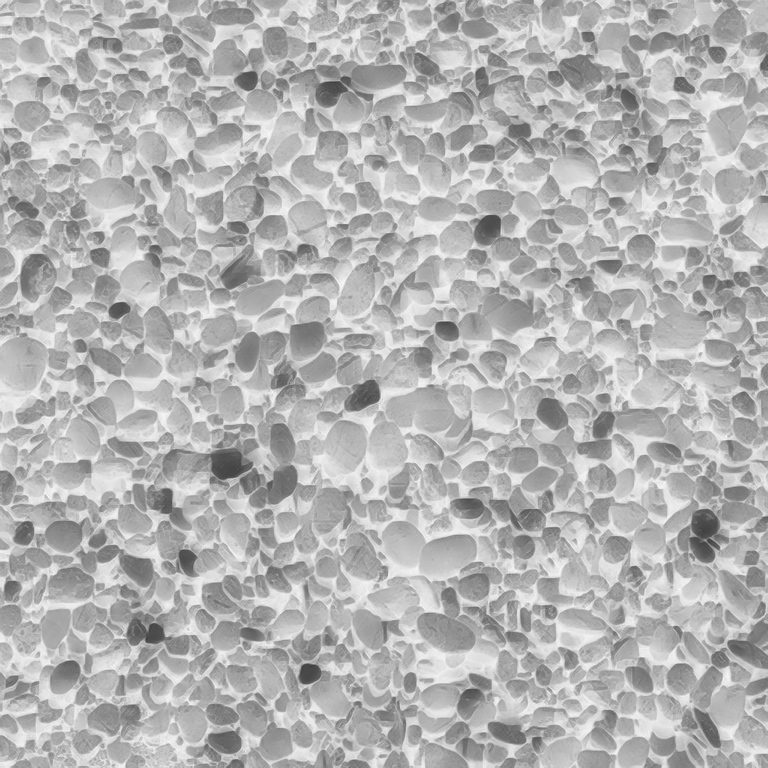
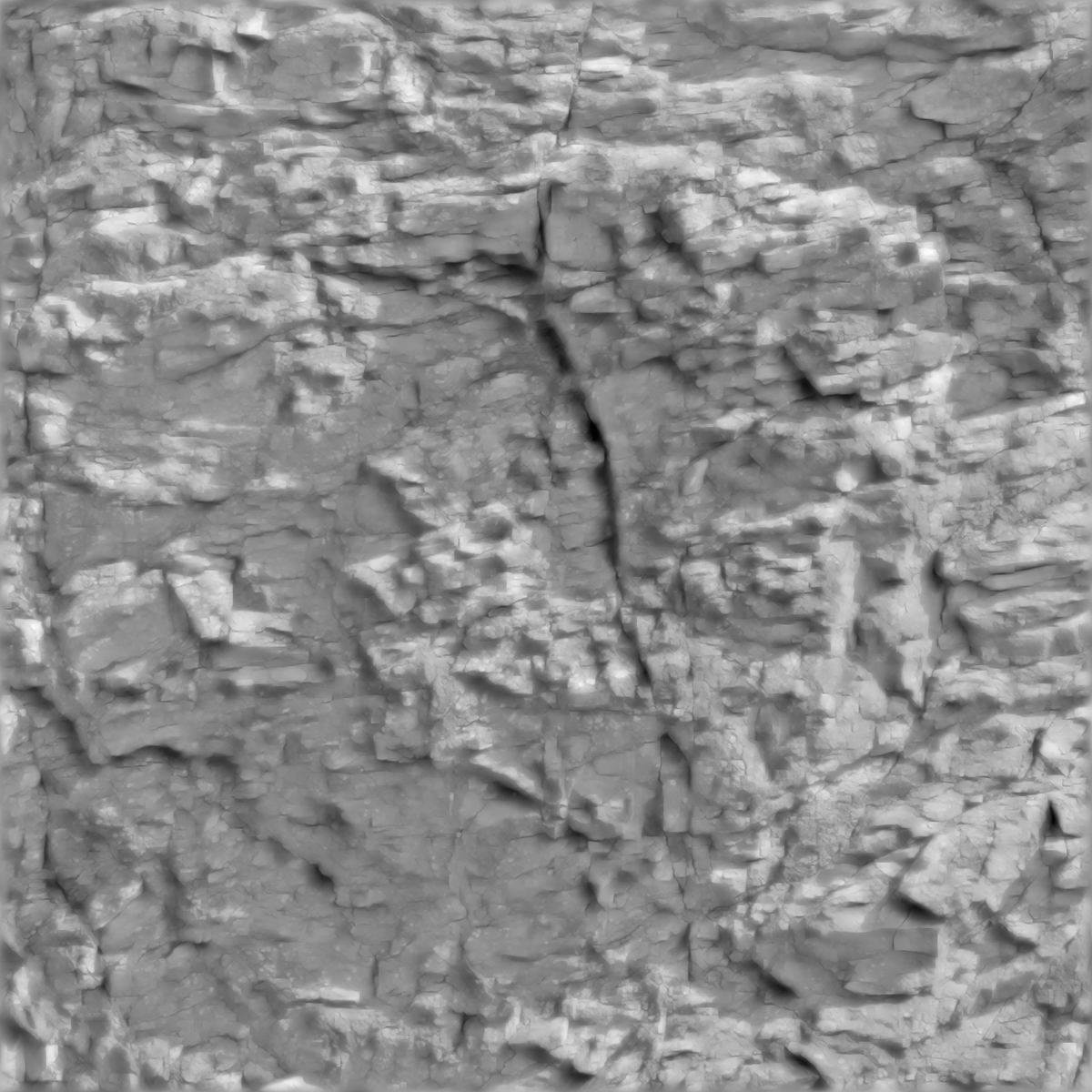
Gravel height map

Height

Real displacement, not a flat bump. Finish it or leave it raw.

16-bit PNG

The workflow

Three moves. No detour.

PBRica lives where you already work. Load, choose, generate — the four maps land in the Image Editor.

01 Load

Drop in a surface.

A photo, a scan or a tileable texture. The preview confirms what Blender sees.

02 Dial it in

Pick the size and finish.

1K to 4K, preserve the aspect or crop square. Leave the rest to a preset.

03 Generate

Use the maps.

Four maps appear as real images. Swap between them, refine, then export.

Relief finish

Height that behaves.

Some surfaces arrive restless: a slow wave, a hot top edge, a seam that will not sit down. Relief Finish calms the height without touching the rest of the material.

Natural Masonry Panels Terrain Custom
How Relief Finish works
Finished height map of the stone material after Relief Finish
Finished heightHeight only
Normal map of the stone material after blending
Normal blend 0.35Normal only

Normal blend

A normal that agrees.

When the height changes, the light should follow. Blend between the generated normal and the shape of your finished surface, then restore the original whenever you want.

  • 0 keeps the generated normal
  • 1 follows the height completely
  • 0.2–0.5 is the sweet spot after a heavy finish
How Normal Blend works

Before / after

The same surface.
A calmer read.

Drag across the height. The finish does not invent a new texture; it helps the one you have sit properly.

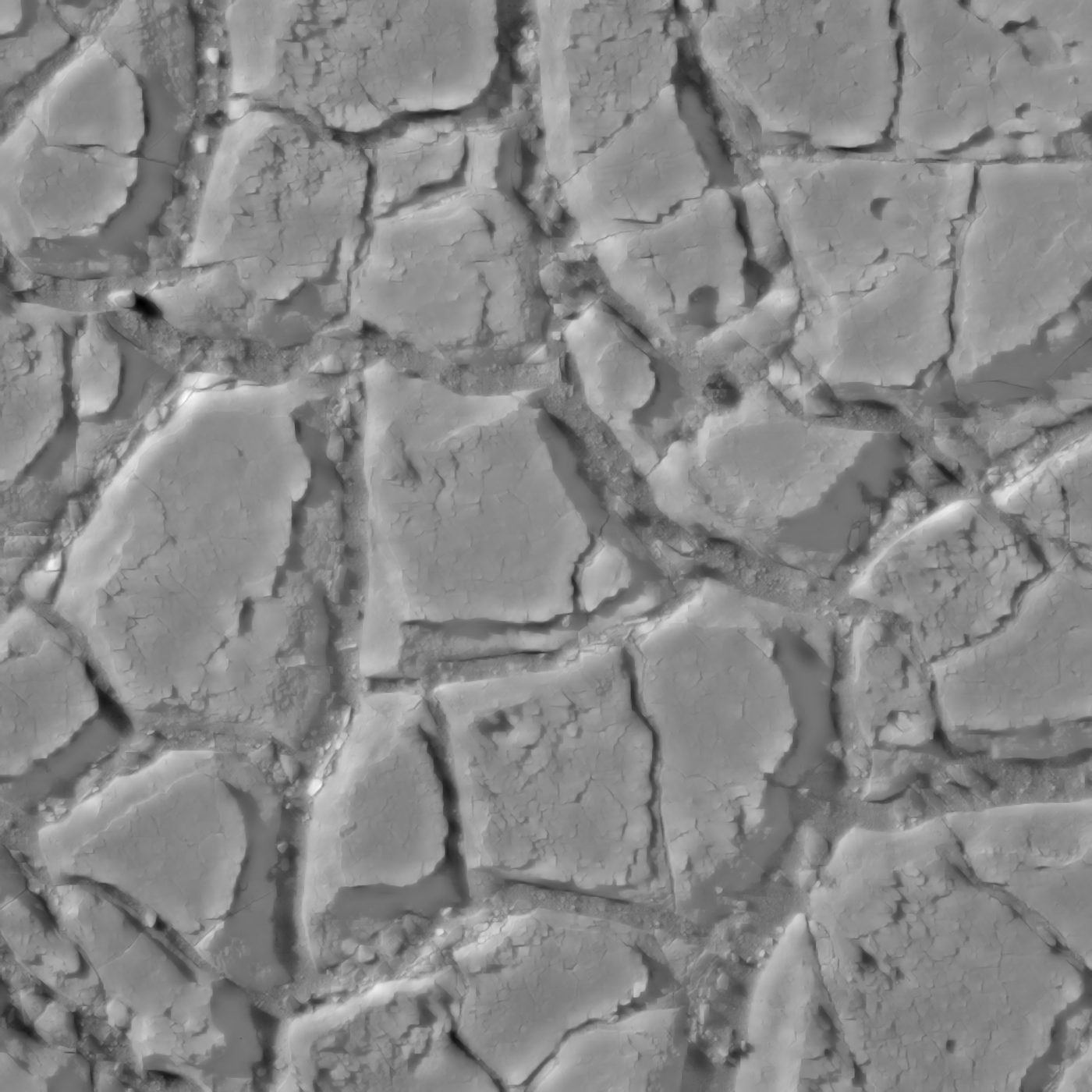
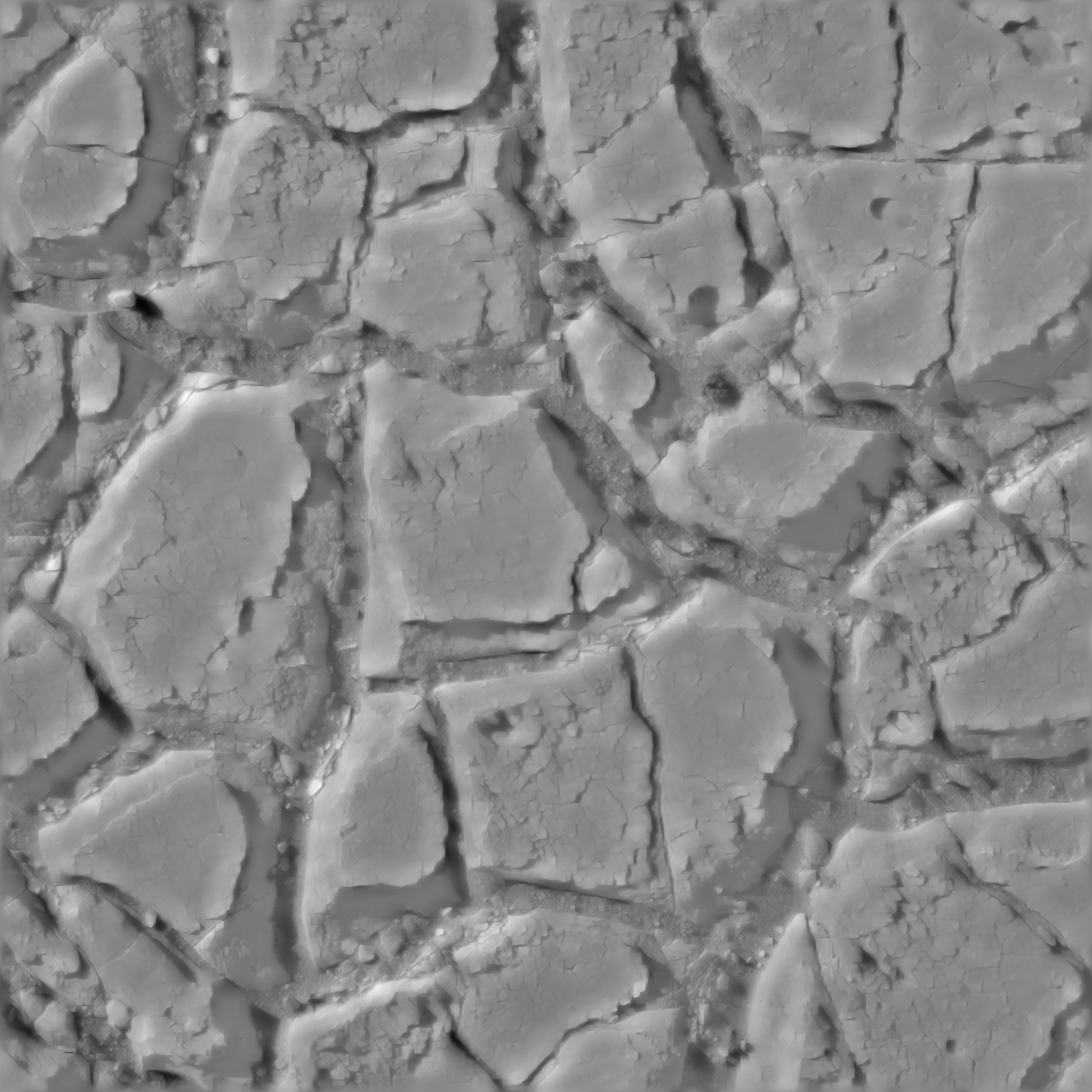
Raw height map of the soil material
Finished height map of the soil material
Raw height Finished

Where it earns its keep

For the work
you already do.

One more useful tool in the material kit — not another pipeline to learn.

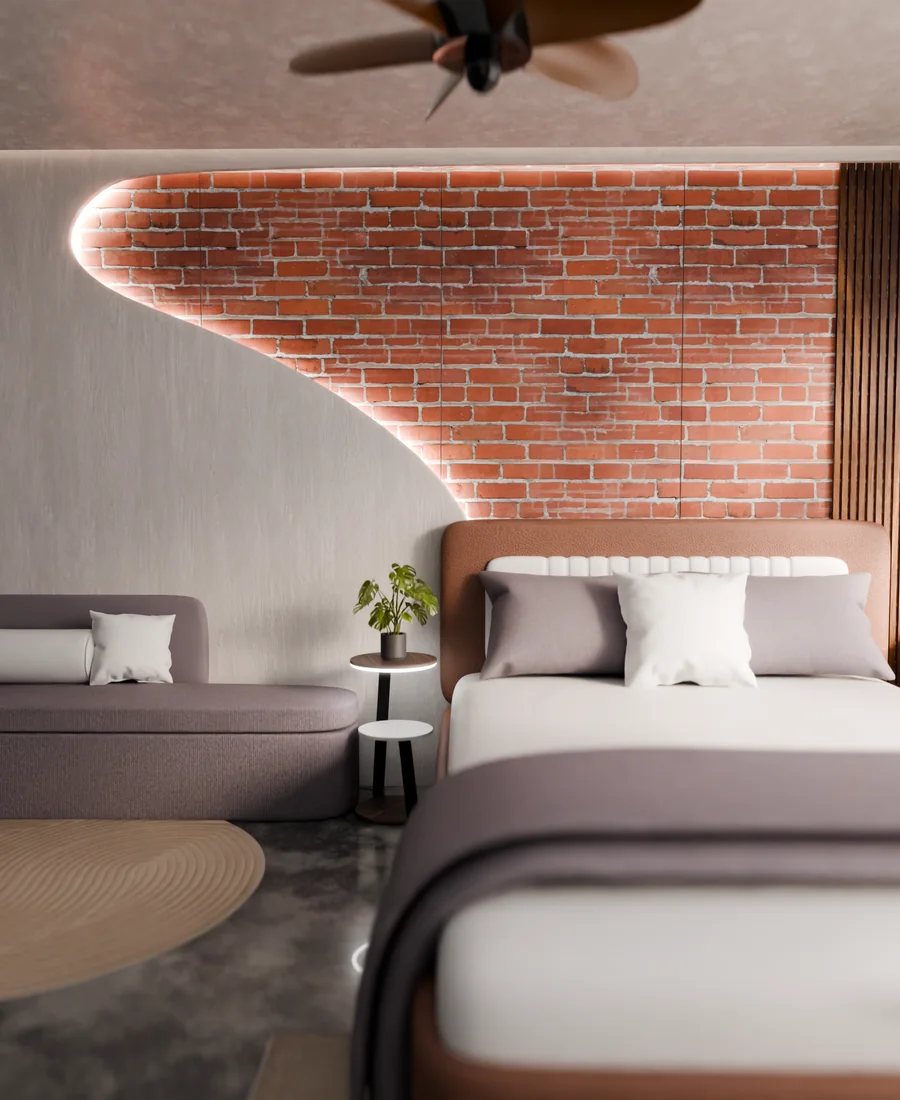
Architectural visualization with a brick feature wall

01 / Archviz

Surfaces that hold up close.

Concrete, stone and tile with a height map that behaves at grazing angles.

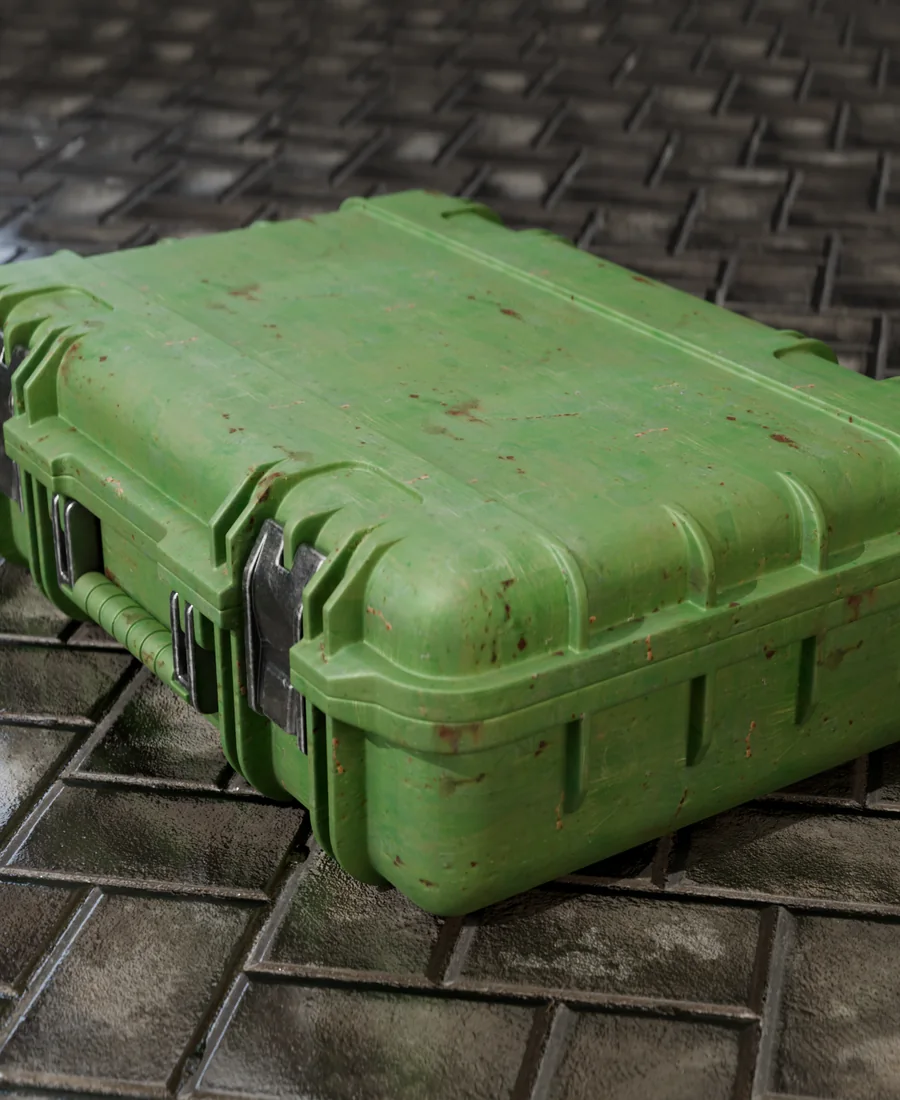
Worn green hard-surface game prop on a tiled floor

02 / Game props

From photo to asset.

Build a material set around a single photo and keep the maps consistent.

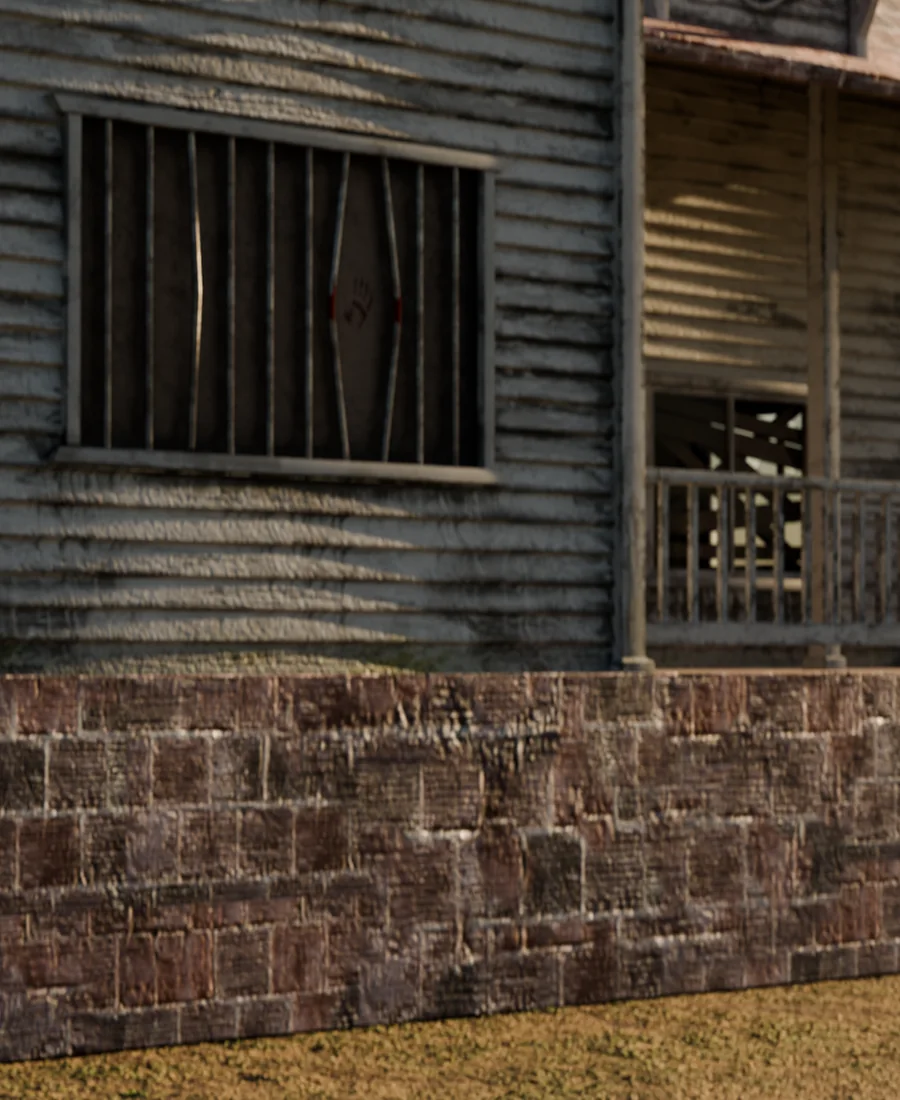
Exterior environment scene with weathered siding and stone

03 / Environments

Kitbash without the friction.

Turn found textures into usable surfaces faster than rebuilding them.

The details

Small things.
Every time.

The kind of defaults that stop a material from feeling almost right.

01 / Resolution

Up to 4K, not just a preview.

Choose 1K, 2K, 3K or 4K with preserved aspect or a square crop. The maps stay useful at the size you actually render.

02 / Bit depth

16-bit where it matters.

Normal and height are written as real 16-bit PNGs, so gradients and displacement do not band on the way out.

03 / Location

Inside the Image Editor.

No separate app, no round trip. PBRica lives in the sidebar and pushes the result into the editor you already have open.

04 / Export

The maps you see are the files you get.

Export the four current maps with their real bit depths, including any finish or normal blend you applied.

The purchase

Own the whole
workflow.

One purchase, no subscription and no credits. Use PBRica on as many materials as you like, for as long as you like.

PBRica 0.6 · one-time

One purchase.Yours to keep.

  • Albedo, normal, roughness and height
  • 1K / 2K / 3K / 4K output
  • Relief Finish and Normal Blend
  • Export Maps with real bit depths
  • Use in unlimited personal and commercial projects

Windows, macOS and Linux. See the docs for the tested-platform note.

Questions

The short answers.

Still unsure? The documentation goes through the whole workflow.

Read the docs
PBRica is available for Windows, macOS and Linux, but it has only been tested on Windows x64. The other platforms are supported on a best-effort basis: try it at your discretion, and read the documentation before buying.
No. The Quality mode works without a dedicated GPU. On Windows, Fastest mode takes advantage of supported GPU acceleration; without it, Quality is the safer choice. CPU generation can take noticeably longer.
Blender 5.2 or newer, 64-bit. PBRica is an extension and installs from a ZIP through Blender's extension manager.
Yes. The maps you create are yours to use in personal and commercial projects. The add-on itself is licensed under GPL-3.0-or-later.
No. It is a one-time purchase. There are no credits, seats or recurring charges.
Relief Finish has presets and a Custom mode, and Restore Raw Height returns to the original. Normal Blend can be taken back to zero at any time. If a surface needs a different approach, the docs show the controls and the workflow.

Give your next material a head start.

One texture in. Four maps out. A material that feels finished, inside Blender.